Connect your AI to Adapt Leads
Let Grok Bot, Claude, ChatGPT or Cursor search the UK book and work in your CRM. Pick your AI, then follow its guide step by step.
You can ask your own AI to work in Adapt Leads. For example: "Add Sam Patel as an introducer" or "Find accountants in Sheffield with a website". This page shows you how, one click at a time.
Pick your AI
| You use | Follow this guide | How it connects |
|---|---|---|
| Grok Bot | Connect Grok Bot to Adapt Leads | A key |
| Claude | Connect Claude to Adapt Leads | Your Adapt Leads sign-in |
| ChatGPT | Connect ChatGPT to Adapt Leads | Your Adapt Leads sign-in |
| Cursor | Connect Cursor and other apps with a key | A key |
Every guide uses the same address: https://mcp.adaptleads.co.uk
There are two ways to connect
- Sign in. Your AI app opens an Adapt Leads sign-in page at app.adaptleads.co.uk. Sign in with the same email and password you use for your CRM, even if your CRM has its own web address. The connection is then made. There is nothing to copy.
- A key. You make a key in Adapt Leads and paste it into your AI app. Use this when your AI app asks for "headers", or when it has no sign-in option.
A key is like a password for your AI. Anyone who has it can use Adapt Leads as you, with the access you chose. Do not share it, and do not paste it into a chat message.
Make a key (only if your guide says so)
- Sign in to Adapt Leads. If your CRM has its own web address, for example crm.itsjustb2b.com, sign in there as usual.
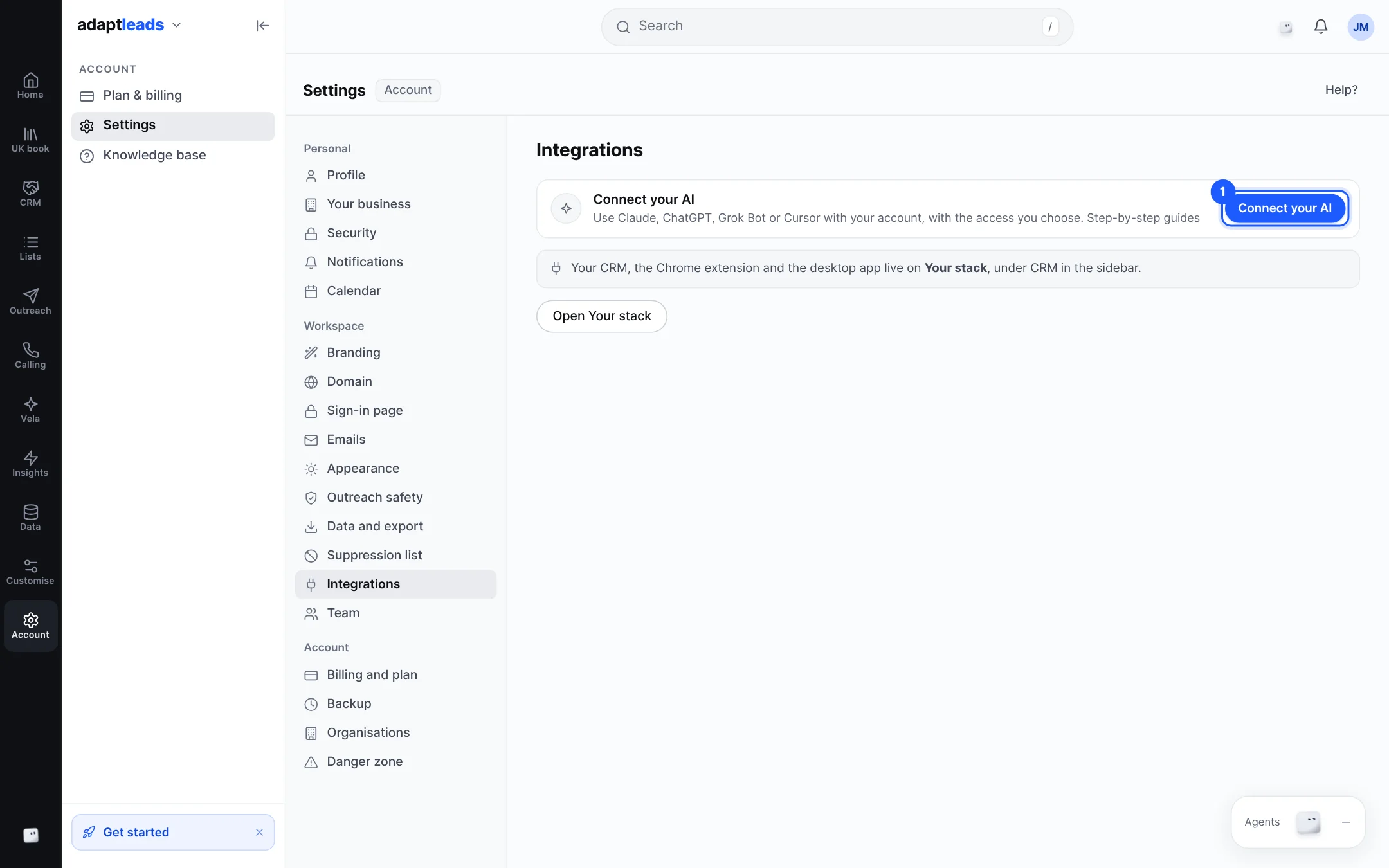
- Open Account, then Settings, then Integrations. A quicker way: press the search bar at the top, type connect, and choose Connect your AI.
- Press Connect your AI.
Two ways to the same window
Settings, Integrations, Connect your AI works in every Adapt Leads workspace, including a CRM set up from a template, such as Just B2B. In Adapt Leads you can also open Your stack and press Keys and details on the MCP connector row.
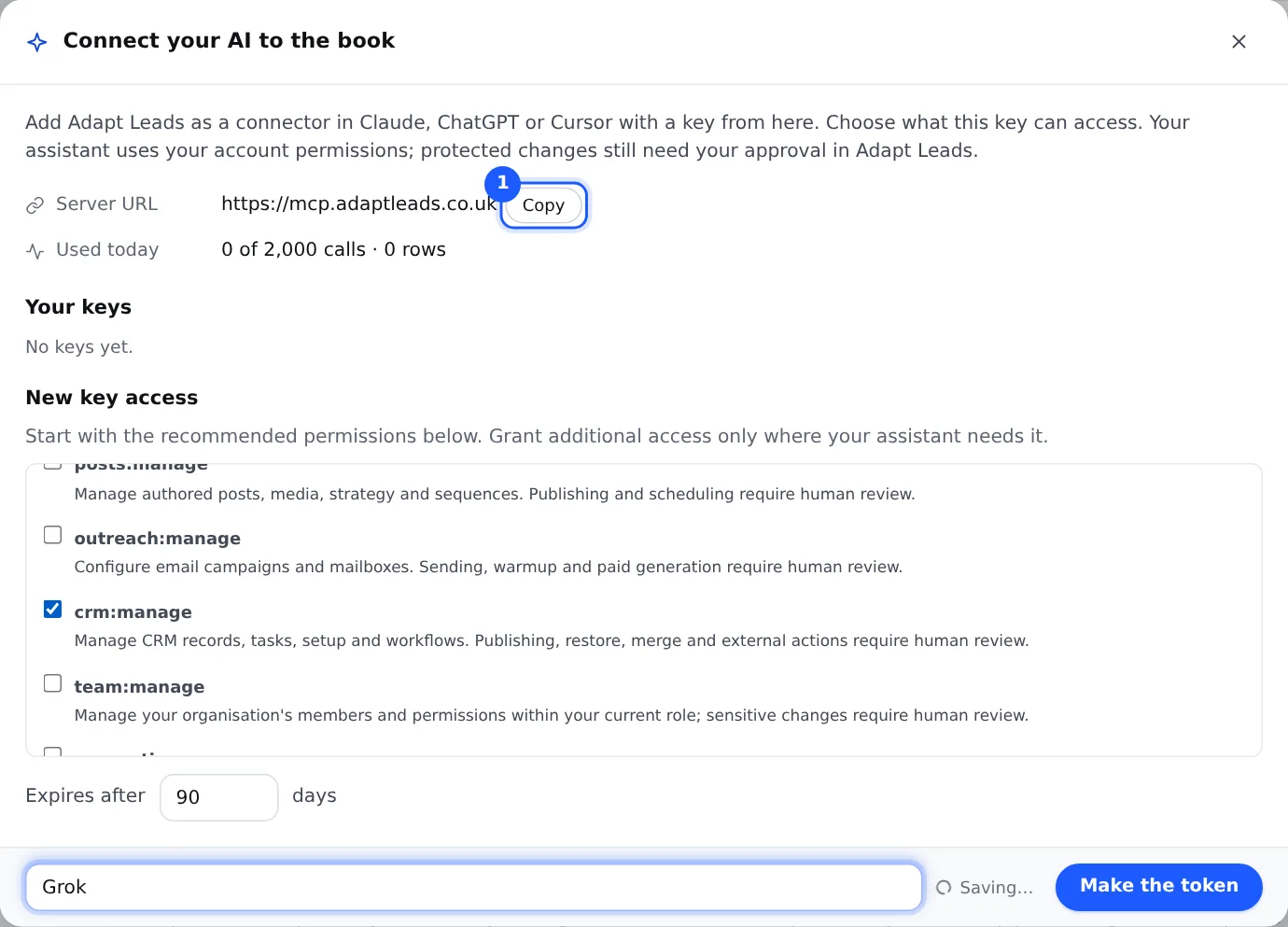
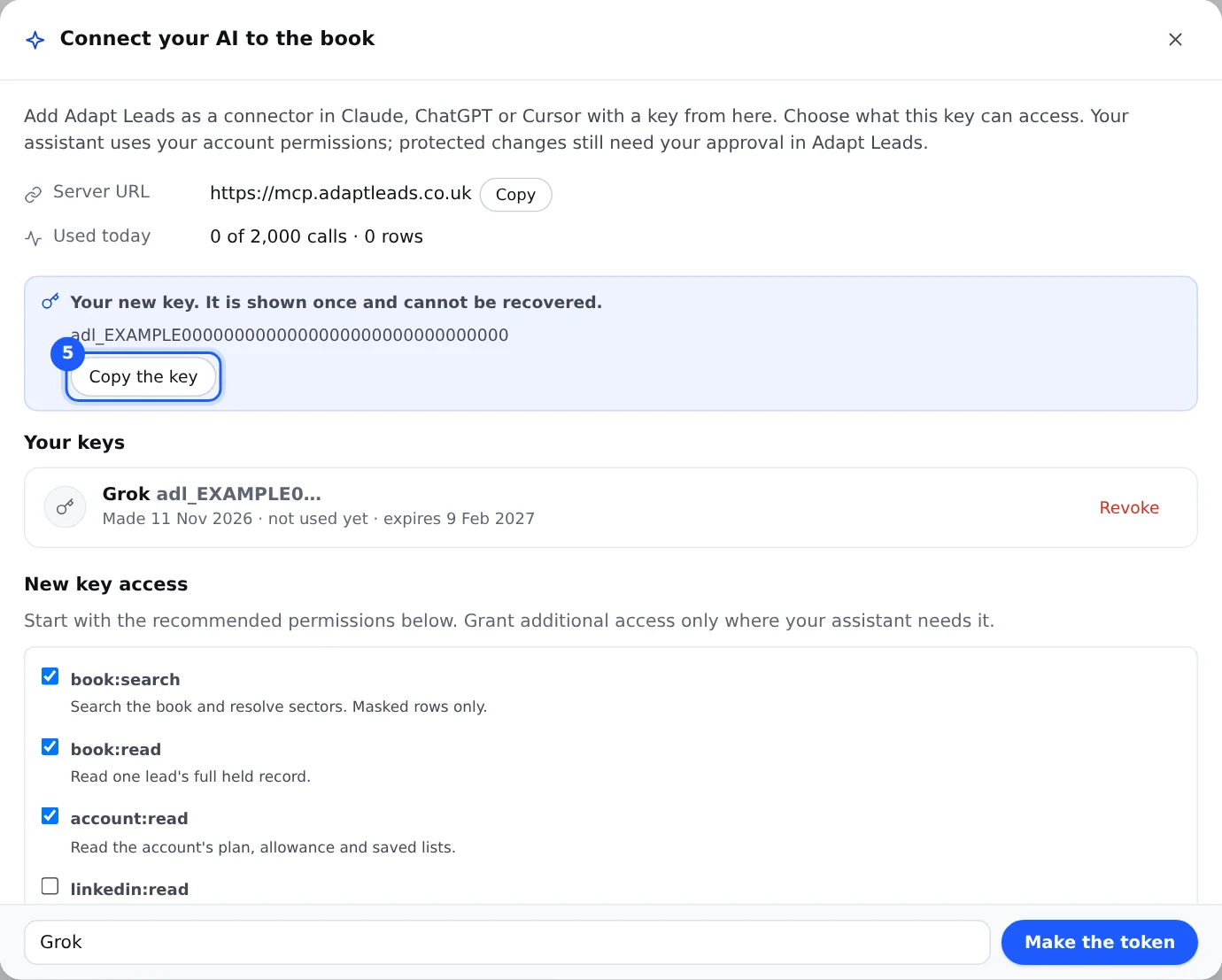
- A window called Connect your AI to the book opens. The address
https://mcp.adaptleads.co.ukis at the top, with a Copy button.
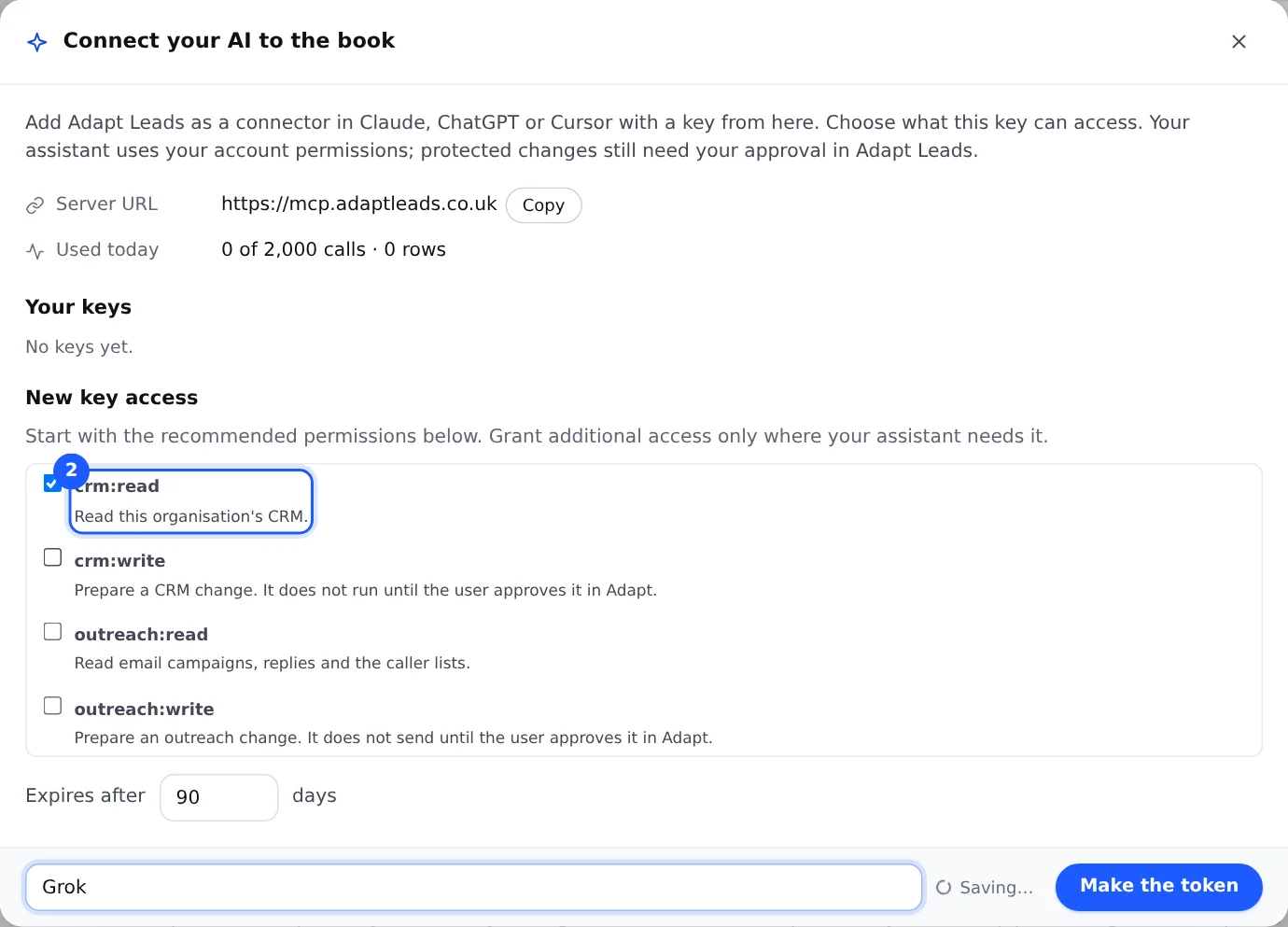
- Under New key access, three boxes are already ticked. They let your AI search the UK book and read your account. Leave them ticked.
- If you want your AI to work in your CRM, tick these as well:
- crm:read lets it read your CRM: leads, deals, introducers, lenders and tasks.
- crm:manage lets it add and change CRM records, for example a new introducer.
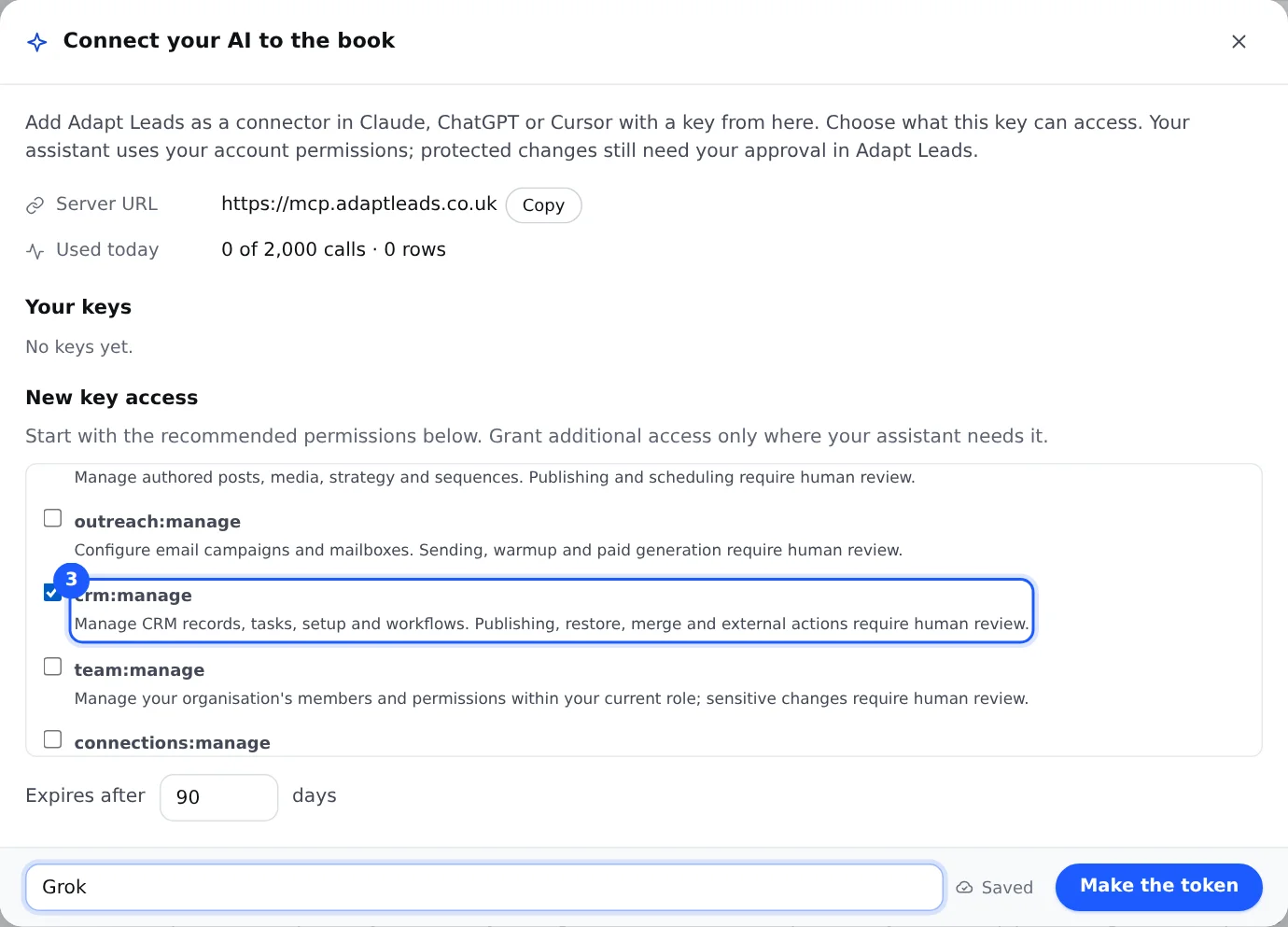
- In the box at the bottom, type a name you will recognise, for example Grok Bot.
- Leave Expires after at 90 days, or change it.
- Press Make the token.
- Your new key appears in a blue box. It is shown once. Press Copy the key and paste it into your AI app straight away.
Which access to choose
- crm:read: your AI can look, but it cannot change anything.
- crm:write: your AI can prepare a change, but nothing happens until you approve it in Adapt Leads.
- crm:manage: your AI can add and change records straight away. Sending emails, publishing, restoring and other protected actions still wait for your approval.
What your AI can and cannot do
- It works only in your own organisation, with your own permissions. A team member who cannot do something in Adapt Leads cannot do it through their AI either.
- It never sends an email, publishes a post or spends a credit without your approval. See How protected MCP actions reach you for approval.
- Records it adds or changes show your name in the record's history.
Each person in your team
Each person makes their own key on their own login, so the history shows who did what. If a team member is not an owner or an admin, an owner may first need to give them CRM access.
Stop a connection
- A key: open Settings, Integrations, Connect your AI, then press Revoke next to the key, and press it again to confirm. It stops working at once.
- A sign-in connection: remove the Adapt Leads connector in your AI app.
If something goes wrong
- "Unauthorized" or "401": the key was not pasted in full, has a space at the end, or was revoked. Make a new key and paste it again.
- "Forbidden": the key does not have the access the task needs. Make a new key and tick the box you need, for example crm:manage.
- Your AI says it cannot find Adapt Leads: start a new chat after you connect. Some apps only load connectors in a new chat.
- Still stuck: email support@adaptleads.co.uk and say which AI app you use. Never send your key.