Connect Grok Bot to Adapt Leads
Add Adapt Leads to Grok Bot with a key, then ask your Bot to work in your CRM, for example to add an introducer while you are out.

You will end with Grok Bot able to search the UK book and work in your Adapt Leads CRM, for example to add an introducer while you are out of the office.
Grok Bot is xAI's agent app. You connect it to Adapt Leads once, with a key, on your computer. After that it works on your phone too.
Before you start
- An Adapt Leads account you can sign in to.
- The Grok Bot app on your computer. xAI's help says a connected app is available to every Bot you run.
Connect Grok Bot
Step 1: make a key in Adapt Leads
Follow Make a key on Connect your AI. Tick crm:read and crm:manage if you want Grok Bot to add and change CRM records. Name the key Grok Bot. Copy the key when it is shown.
Step 2: add Adapt Leads in Grok Bot
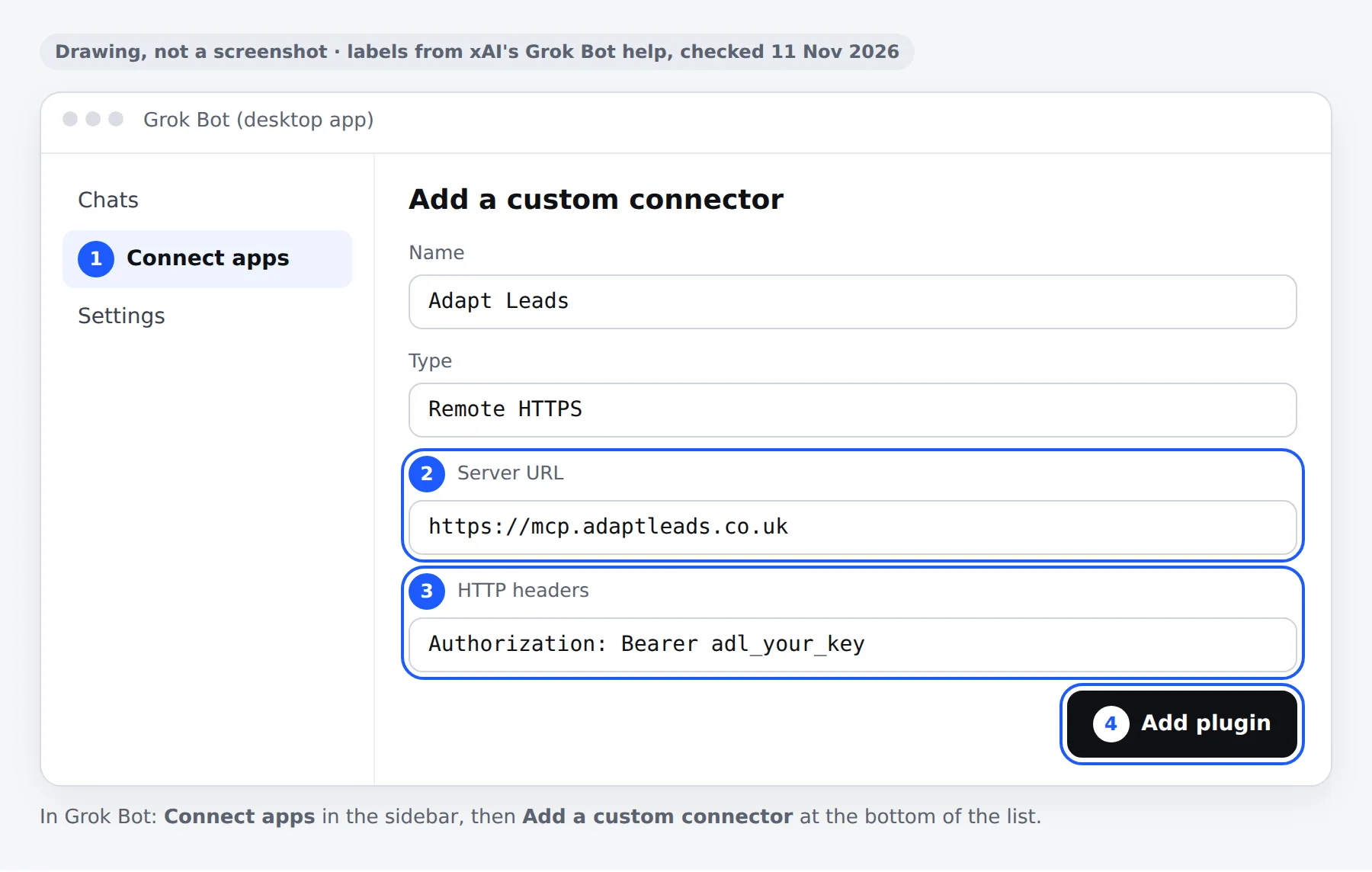
- Open the Grok Bot app on your computer.
- In the sidebar, choose Connect apps.
- Scroll to the bottom of the list and choose Add a custom connector.
- For Name, type
Adapt Leads. - For Type, choose Remote HTTPS.
- For Server URL, paste
https://mcp.adaptleads.co.uk - Under HTTP headers, add one header:
- Name:
Authorization - Value: the word
Bearer, a space, then your key. For exampleBearer adl_EXAMPLE0000.
- Name:
- Leave Client ID empty.
- Choose Add plugin.
- Check that Adapt Leads now shows under Installed in Connect apps.
Step 3: try it
Start a new chat with your Bot and type:
Use Adapt Leads. How many open deals do I have?
The first time, Grok Bot may ask you to allow it to use Adapt Leads. Allow it. In a chat you can also type @ and choose Adapt Leads, so Grok Bot uses it for that task.
Using Grok on grok.com instead
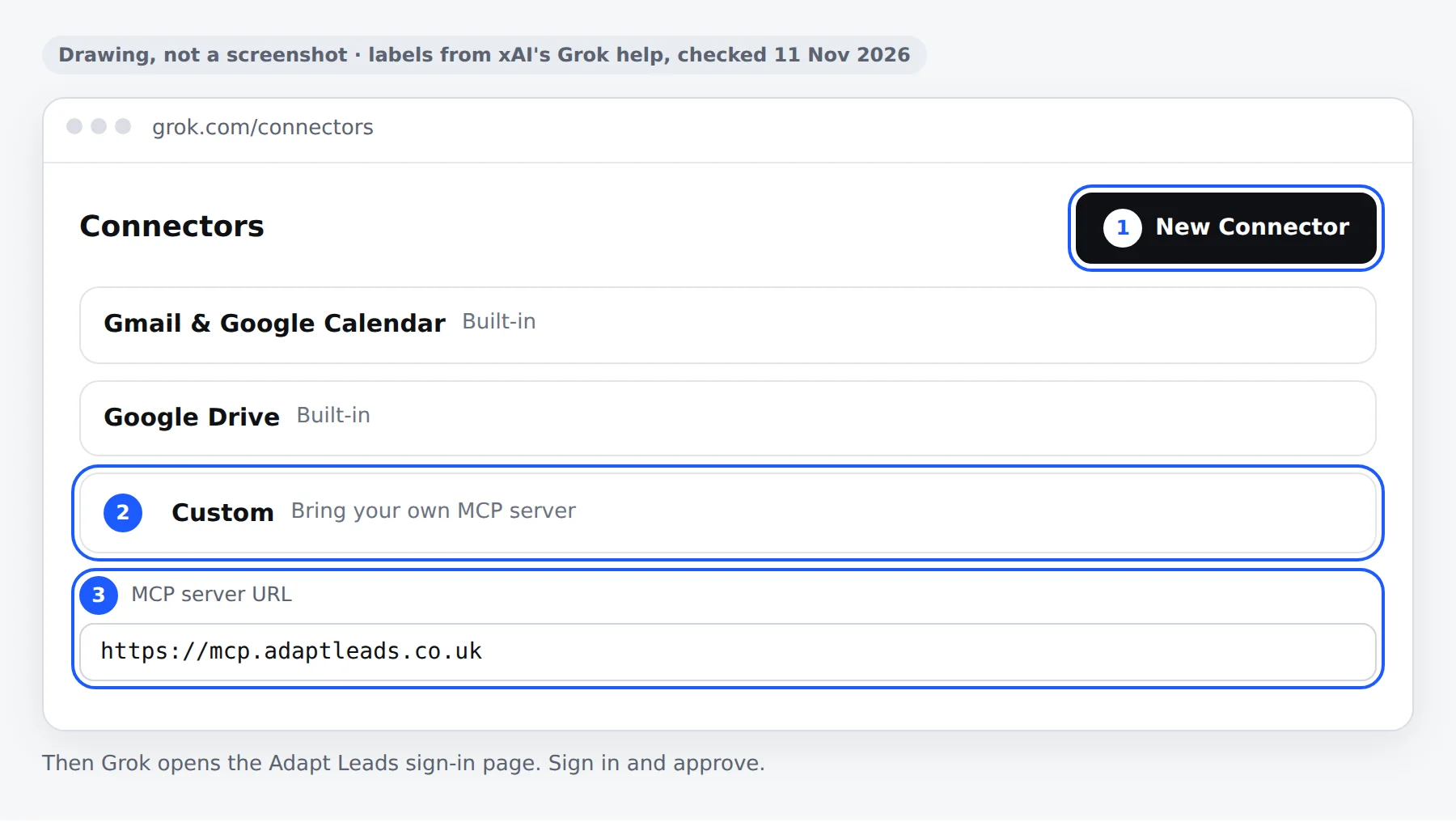
If you use Grok in a web browser at grok.com rather than Grok Bot, go to grok.com/connectors, choose New Connector, then Custom, and paste https://mcp.adaptleads.co.uk. Grok opens an Adapt Leads page called Connect Grok to Adapt Leads. Sign in there to approve it. On Grok Business or Enterprise, your Grok team admin must add the connector first.
Worked example: add an introducer while you are out
This is for CRMs that track introducers, such as a finance broker's. Your key needs crm:read and crm:manage.
Send Grok Bot the details as one message, for example:
In Adapt Leads, add a new introducer. Name: Sam Patel. Company: Marsh and Keel Accountants. Email: sam@marshandkeel.example. Phone: 07700 900123. Status: Active. In the notes, put the company number 99991234 and the registered address 12 Example Street, Sheffield S1 2AB. Check first that they are not already an introducer.
(The details above are made up for this example.)
What happens:
- Grok Bot searches your introducers for the name and the company. If there is a match, it tells you and stops.
- Grok Bot adds the introducer. It appears in your CRM straight away, with your name in its history.
- If you also ask Grok Bot to give them access to your introducer portal, Grok Bot prepares it. Nothing is sent until you approve it in Adapt Leads, because it emails a person outside your business. See How protected MCP actions reach you for approval.
If Grok Bot says a field does not exist, that is your CRM telling it the record has no box for it. Ask Grok Bot to put that detail in the notes instead.
Stop the connection
- Grok Bot: in Connect apps, open Adapt Leads and remove it. Then revoke the key in Adapt Leads: Settings, Integrations, Connect your AI, Revoke.
- grok.com: remove the connector on grok.com/connectors.
If something goes wrong
- Grok Bot says it has no Adapt Leads tools: start a new chat. In Grok Bot, check that Adapt Leads shows under Installed, and that it does not say Needs auth or Disconnected.
- "Unauthorized": the header value must be
Bearer, one space, then the whole key, with no space at the end. Or the key was revoked. Make a new key. - "Forbidden" when adding a record: the key does not have crm:manage. Make a new key with it ticked.
- Your team admin's policy blocks the server: on Grok Business or Enterprise, ask your Grok admin to allow
https://mcp.adaptleads.co.uk. - See also the troubleshooting list on Connect your AI.
Grok's own help: Grok connectors and Grok Bot: connect apps.